Introduction
Linux Mint recently shifted to a longer development cycle, with its next major release slated for Christmas. This change creates a challenge for users trying to install the OS on brand-new hardware that demands a more recent kernel. To bridge this gap, the project introduced a special set of ISO images called HWE (Hardware Enablement). These HWE ISOs bundle a newer kernel—specifically Linux 6.17—right out of the box, ensuring compatibility with the latest chipsets, Wi-Fi adapters, and graphics cards. In this guide, we’ll walk you through understanding what HWE ISOs are, why you might need one, and how to download, create bootable media, and install Linux Mint using them. By following these steps, you’ll have a smooth setup on cutting-edge hardware without waiting months for a standard release update.

What You Need
- A computer with hardware that is very new (released in the last 6–12 months) and may not work with older kernels.
- A stable internet connection (broadband recommended) to download the ISO (about 2–3 GB).
- A USB flash drive (at least 8 GB) for creating a live/bootable medium.
- A tool to write the ISO to USB (e.g., Rufus on Windows, dd or Etcher on Linux/macOS).
- Basic familiarity with BIOS/UEFI boot settings (to boot from USB).
- Optional: A separate computer to download and prepare the USB if your target machine cannot boot yet.
Step-by-Step Guide
Step 1: Understand What HWE ISOs Are and Why They Exist
HWE stands for Hardware Enablement. Traditionally, Linux Mint releases include a kernel version that was stable at the time of the distribution’s freeze. However, hardware manufacturers constantly release new components—like Wi-Fi chips or Ryzen 8000 series CPUs—that require drivers only found in newer kernels. The Linux Mint team now publishes separate HWE ISOs each time a new HWE kernel arrives, meaning you get a live environment and installer that already includes support for very recent hardware. This avoids the need to install the base Mint version and then manually upgrade the kernel, which can be tricky if your network card isn’t recognized.
Key fact: The first HWE ISO for Linux Mint 22.3 ships with the 6.17 kernel. Going forward, new HWE ISOs will be released as newer HWE kernels become available in Ubuntu’s repositories (since Mint is based on Ubuntu LTS).
Step 2: Check Your Hardware Compatibility
Before downloading, identify whether your machine actually needs the HWE ISO. Ask these questions:
- Is your computer less than a year old? (e.g., models from late 2024 or 2025)
- Does it contain a very recent GPU (NVIDIA RTX 5000 series, AMD RDNA4) or a new Wi-Fi 7 adapter?
- Have you tried the standard Linux Mint ISO and encountered boot failures, missing drivers, or no network?
If you answered yes to any, proceed with the HWE ISO. If your hardware is 1–2 years old, the standard ISO likely works fine. You can also check the Linux Mint release notes and Ubuntu hardware compatibility lists for known issues.
Step 3: Download the HWE ISO
Visit the official Linux Mint download page (linuxmint.com/download.php) and look for the “HWE” edition. Currently, the 22.3 “Virginia” HWE image is available. Ensure you select the correct desktop environment (Cinnamon, MATE, or Xfce). The HWE edition is usually labeled clearly. Click the link and download the .iso file. For faster speeds, choose a local mirror.
Optional: Verify the download checksum (SHA256) to ensure file integrity. The checksums are provided next to each download link.
Step 4: Create a Bootable USB Drive
You need a tool to write the ISO to a USB stick. Steps vary by OS:
- Windows: Use Rufus (rufus.ie). Select the ISO, choose GPT partitioning scheme for UEFI systems (or MBR for older BIOS), and write.
- Linux: Use the
ddcommand (be careful) or a graphical tool like Startup Disk Creator or Balena Etcher. - macOS: Balena Etcher works well. Alternatively, use the
ddcommand in Terminal.
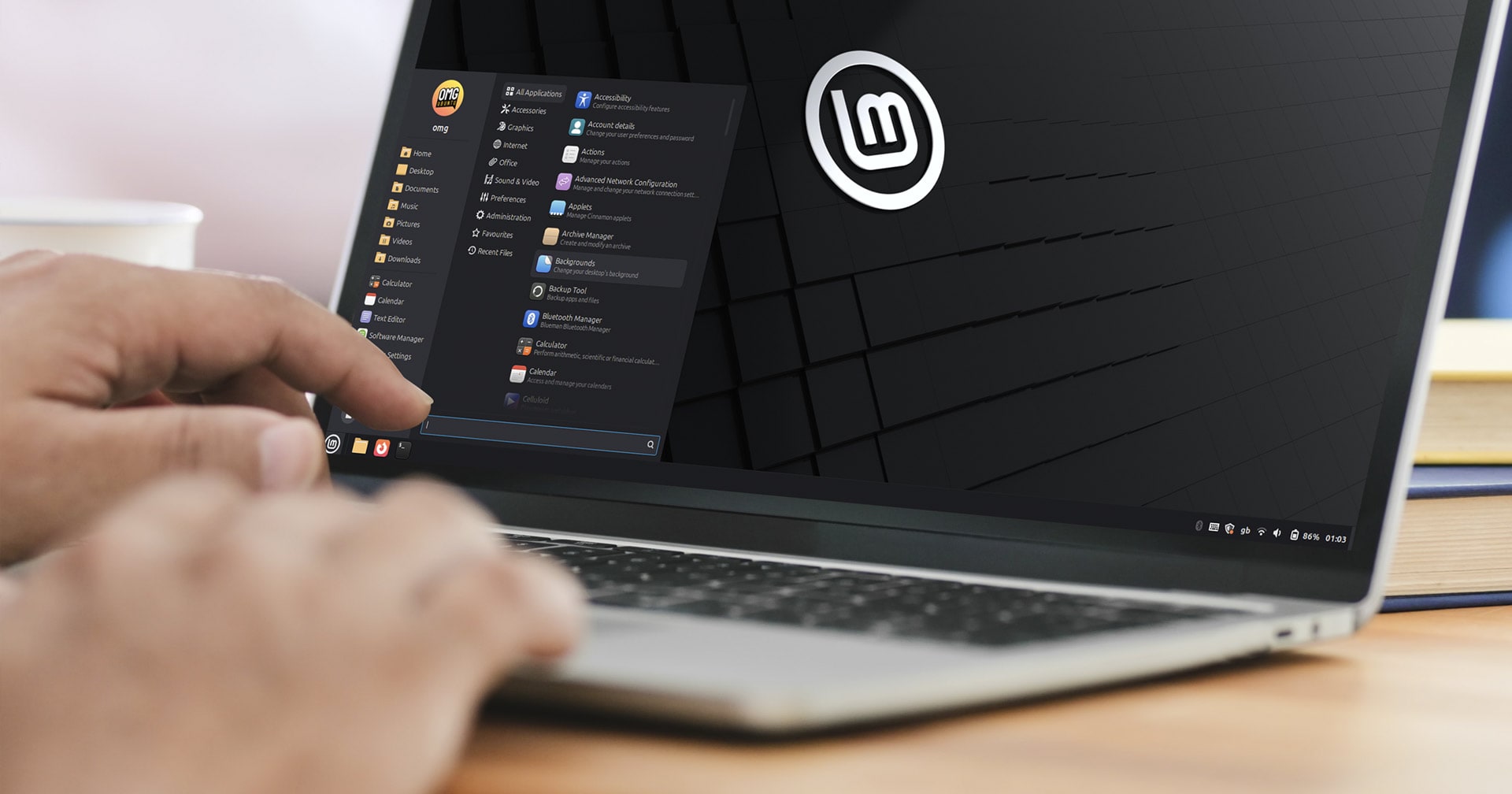
After writing, safely eject the USB. It is now a bootable Linux Mint HWE live stick.
Step 5: Boot from the USB and Install
Insert the USB into your new machine and restart. Enter the boot menu (usually by pressing F12, F2, Del, or Esc immediately after power-on). Select the USB drive as the boot device. You should see the Linux Mint boot menu; choose “Start Linux Mint” to launch the live environment.
Once inside, test the hardware: check Wi-Fi, audio, display resolution, and any peripheral devices. If everything works, double-click the “Install Linux Mint” icon on the desktop to start the guided installation. Follow the on-screen prompts:
- Select language, keyboard layout.
- Choose installation type (e.g., erase disk and install, or dual boot).
- Set up user account and password.
The installation will use the HWE kernel, so after reboot your hardware should continue to be supported.
Step 6: Verify the Installed Kernel Version
After installation and reboot, open a terminal and run uname -r. You should see something like 6.17.x-hwe or just 6.17.x. If not, you may have accidentally used the standard ISO. Also check that your hardware (e.g., Wi-Fi, sound, graphics) works normally. If any issues persist, visit the Linux Mint forums or community for troubleshooting.
Step 7: Future Updates – Stay on the HWE Track
Linux Mint 22.3 HWE will continue to receive kernel updates through the Hardware Enablement Stack from Ubuntu. Keep your system updated via the Update Manager. It’s recommended to enable all updates, as HWE kernels may be updated every 6–12 months. When a new HWE ISO is released (e.g., for kernel 6.20), you can either reinstall with the new ISO or wait for the automatic kernel update to arrive via the regular update channel. Check the official Linux Mint blog for announcements.
Tips and Best Practices
- Always back up important data before installing a new OS, especially if you’re trying HWE for the first time.
- If you have very new hardware (e.g., Intel Lunar Lake or AMD Strix Point), the HWE ISO is almost mandatory—don’t waste time with the standard edition.
- After installation, consider installing proprietary drivers (e.g., NVIDIA) from the Driver Manager for optimal 3D performance.
- If you encounter a boot failure with the HWE ISO, try booting with nomodeset kernel parameter (edit the boot entry by pressing E).
- Join the Linux Mint community forums or IRC channel; many early adopters share hardware compatibility reports.
- Keep an eye on future HWE ISO releases: The Mint team plans to publish them every time a new HWE kernel lands, so you can always get the latest support without waiting for the next Mint point release.
By following this guide, you’ve successfully set up Linux Mint on new hardware with optimal support. Enjoy a stable, familiar desktop environment backed by a cutting-edge kernel!